Quick start
From an empty account to a campaign playing on a screen.
You need a screen with the Asta player app installed, and a few pictures or videos. The whole run takes about ten minutes.
1. Pair your screen
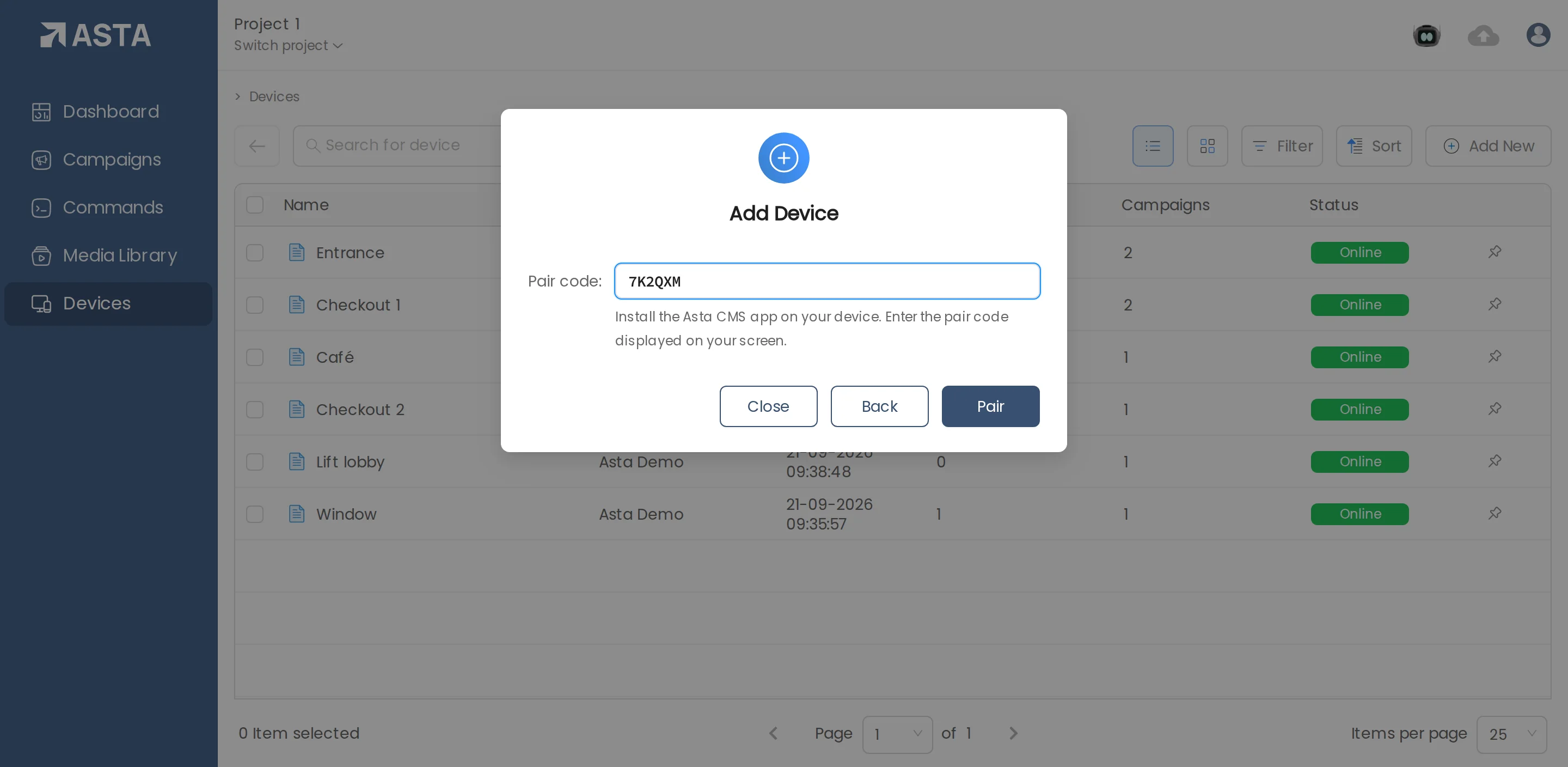
On the screen, open the Asta app. It shows a pair code. In Asta, go to Devices, click Add New and choose File, name the screen, click Next, type the pair code and click Pair.
2. Upload your media
Go to Media Library, click Add New and choose File. Drop your pictures and videos in. They're ready once they appear in the list.
3. Build a campaign
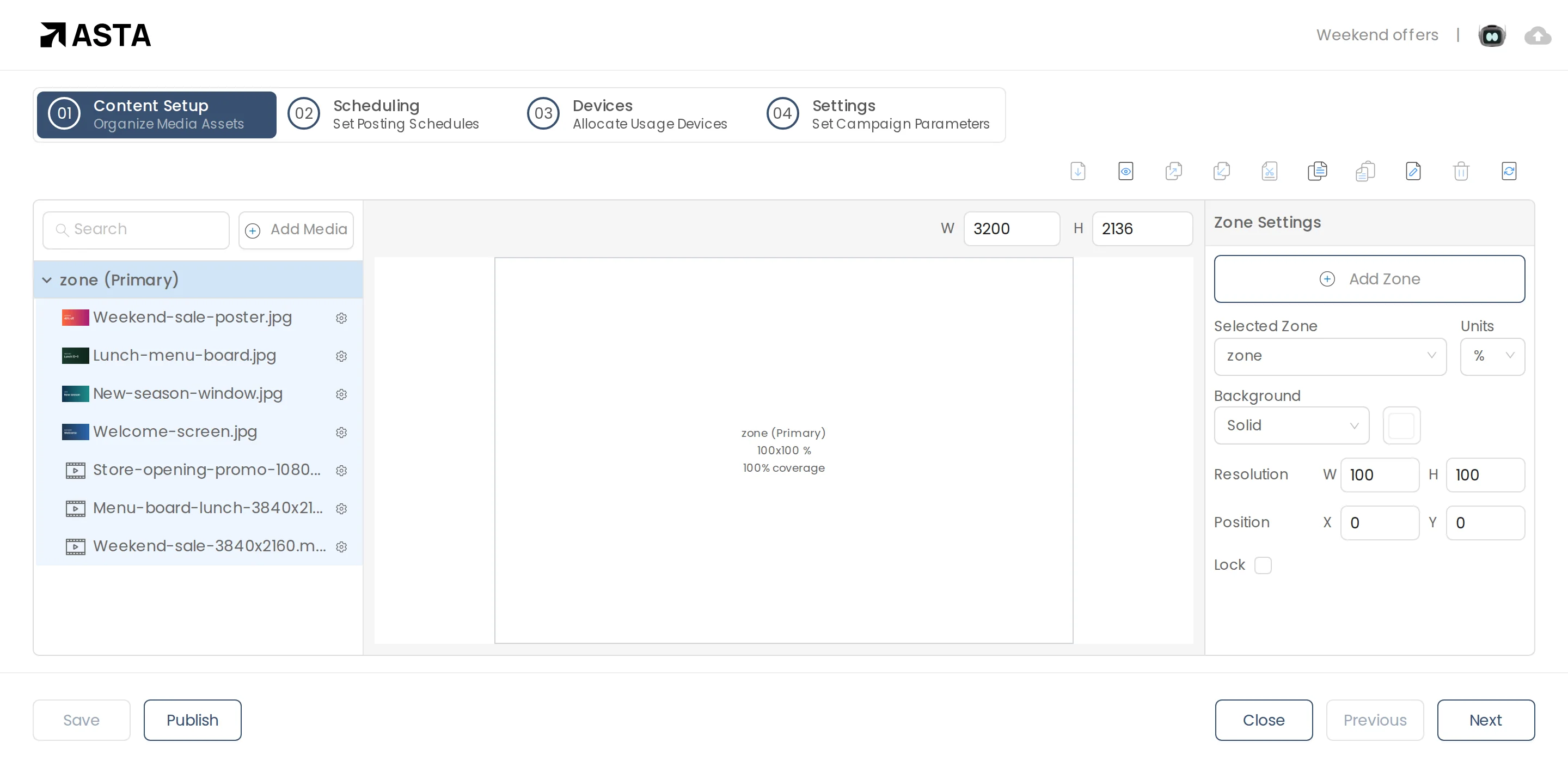
Go to Campaigns, click Add New, choose File and give it a name. In the editor, click Add Media and pick your files.
4. Choose the screen and publish
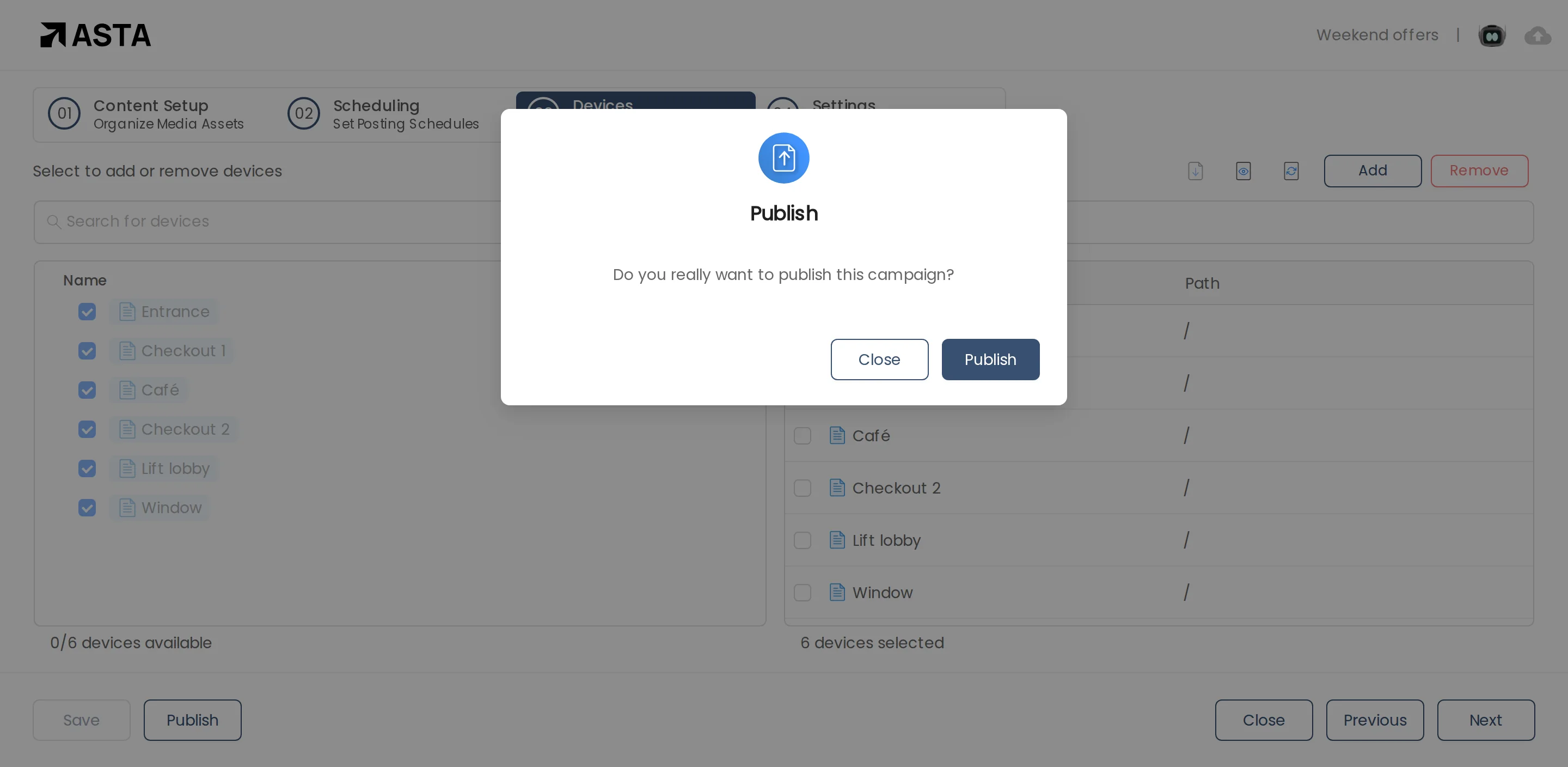
Click Next to set the dates and hours, Next again to choose screens, then Publish. The screen downloads the files first, then starts playing.
Can't find what you need?
Email support@futureik.com and a person from our team will reply.