Check a screen's health
Status, network and storage for one screen, and its online history.
Click a screen's name in Devices to open it. The General tab shows how it's doing.
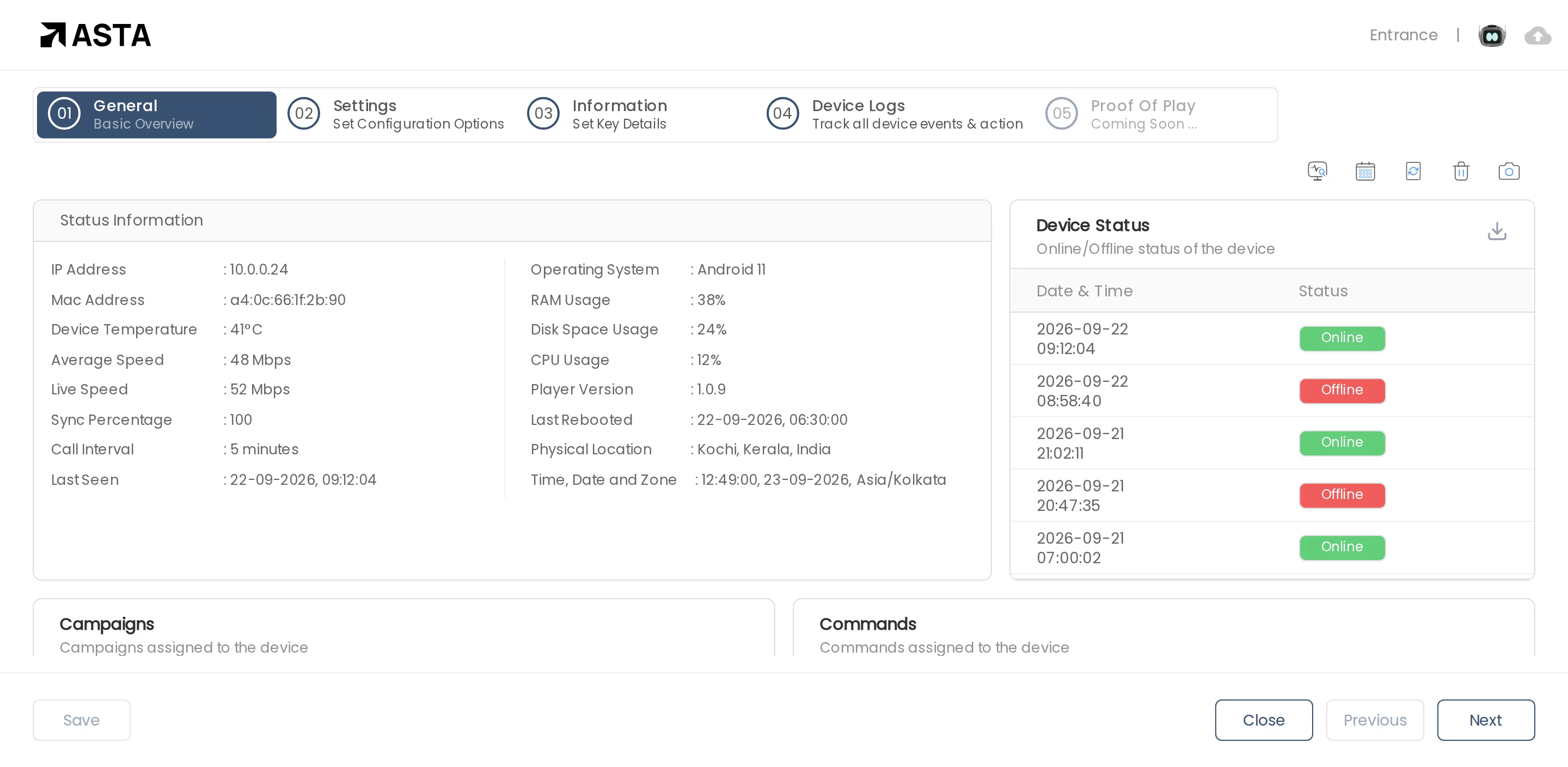
- Status Information: its network, temperature, memory and storage use, app version, and when it was last online and last restarted.
- Device Status: every time the screen went online or offline. Download it with the arrow icon.
- Campaigns and Commands: what's assigned to this screen.
The other tabs hold the screen's Settings (such as screen size and orientation), Information (its time zone and exit security) and, on Professional, Device Logs.
Can't find what you need?
Email support@futureik.com and a person from our team will reply.